
In testing · iPhone app and Chrome extension
Point at your website.
Say what should change.
Web Editor turns a tap on an element and one sentence into a precise request for your own coding agent — with the selector, the styles, the surroundings and the system the site runs on.
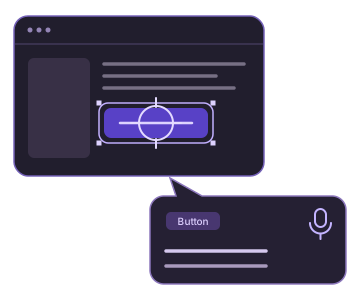
One sentence in.
A request your agent gets right the first time.
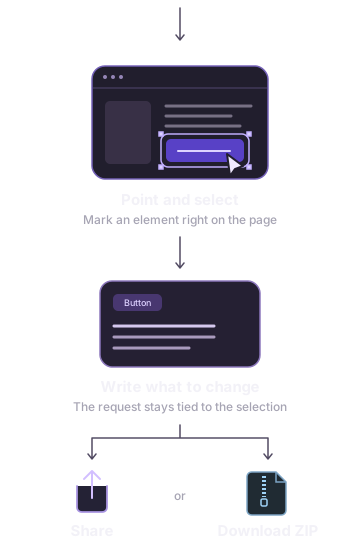
- Open your website in Web Editor on your phone, or browse it in Chromium with the extension.
- Select an element with the crosshair and type or dictate what should change.
- Add the request to the list. How many there are before you hand the list over is up to you.
- Hand it to your agent — clipboard, zip, share sheet on the phone, or the remote MCP you switch on in the app.
- The agent edits your source. You reload the page and check the result.
Read from the page.
Not guessed from the code.
You don't describe which element you mean or hunt for it in the source. Your sentence goes out exactly as you said it; Web Editor adds what it sees on the page and the agent does not. What it can't evidence from the page, it leaves out — an uncertain layer costs the agent an extra round.
-
Anchor and selector
They still fit the element after the page re-renders. Plus the styles that actually apply to it.
-
Surroundings
The element's neighbours, its size and position in the viewport, and a crop of it as an image.
-
The site's system
WordPress, Shopify, Shoptet, Webflow or Wix — when the page makes it knowable. Optionally page speed, anchored to the element.
What it never does
- Never writes to your code and connects to no git
- Never alters the page you are looking at — it only reads it
- Calls no model; you pay for that at your own agent
- Sends nothing on its own; the page content stays on your device
- Neither hosts nor maintains anyone's website
The one way out
The only way out leads through the remote MCP, and you switch it on. Only what you sent travels that way — the sentence, the anchor and the crop you attached. The list sits with us for a week after the last request and then disappears; turning the switch off deletes it at once. We don't read it and we learn nothing from it.
One address.
Your agent does the rest.
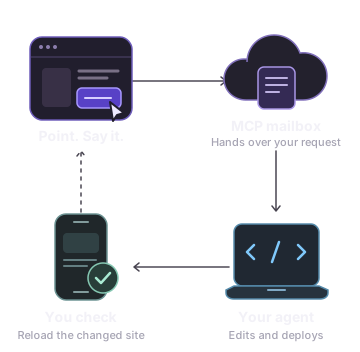
The clipboard, the zip and the share sheet work with no setup, need no consent and no us.
To have requests land at your agent directly, switch on sending in the app's Connections section and copy the MCP address from there. Paste it once into your client — Claude Code, Cursor, VS Code, Windsurf, Zed, Cline — and the agent reads the requests and ticks them off itself.
https://mcp.webeditor.click/…
Nothing to install, no account. The address carries the key to your list: treat it as a secret, not a login.
Holding a request headed “Zadání z prohlížeče (Web Editor)”? This tool assembled it: someone pointed at an element of a page and said what should change, and the rest — selector, styles, surroundings — is read off the rendered page, not the source. Verify it in the code; it is a description of what is visible.
Also in Chrome.
Installed by hand, for now.
For Chrome and the other Chromium browsers — Edge, Brave, Arc, Vivaldi. It isn't in the store yet, so it loads from an unpacked folder. That takes a minute and needs no invitation.
- Unpack the zip into a folder you will not delete or move — the browser loads it from disk at every start.
- Open
chrome://extensions— in Edgeedge://extensions, in Bravebrave://extensions. - Turn on Developer mode with the switch at the top right.
- Click Load unpacked and pick the unpacked folder.
- Open your website and call up the palette with the toolbar icon or ⌘⇧E (Ctrl+Shift+E).
To update: download again, overwrite the folder's contents and hit Reload on the extension in chrome://extensions. At every start the browser asks whether to keep running an extension in developer mode — that comes with installing by hand and goes away once the extension is in the store.
An app under construction.
Here is what you'll find.
Running today
- The element crosshair, right inside the page
- Anchors and context, so the request still fits the element after a re-render
- A running list of requests, the zip package and sharing from the app
- The iPhone app — browser, selection by finger, dictation
- The extension for Chrome and Chromium; outside the store for now, installed by hand
- Remote MCP: one address into your client, the agent reads and ticks off requests
- Page speed as a layer of the request — transfer and Web Vitals, anchored to the element
Not yet
- The App Store and the extension store
- Subscription and payments; there will be no account at all, entitlement will come from the receipt
- Sending requests to our MCP from the extension — from the app only for now
- Reviewing finished work in the app: before and after on the same element
- Prompt sets, learned design and routines
- The Safari extension, Android and Windows
Try Web Editor.
Testing runs on invitations. Write to us and we'll send you one for TestFlight — by hand, right away, no queue.
Write to us
Include the Apple ID the invitation should go to.
We send the invitation
To TestFlight. It arrives as an e-mail from Apple.
Install through TestFlight
On the iPhone. Updates then arrive on their own.
We test on the iPhone for now; the Chrome extension above needs no invitation. Once Web Editor is in the App Store, the link to it will be here. Or write straight to info@indigostudio.cz.